
Is your PC dragging its feet every time you open a browser, load a program, or even just power it on? You’re not alone. A slow computer is one of the most common—and frustrating—tech issues that users face, regardless of whether you’re working remotely, editing photos, gaming online, or simply checking emails. It doesn’t just disrupt productivity; it can seriously impact your mood and waste precious time.
While your first instinct might be to blame the age of your device or assume it’s time to buy a new one, that’s not always necessary. In reality, sluggish PC performance often stems from a few fixable issues—like outdated components, unnecessary startup apps, or background processes hogging resources. With the right knowledge or expert help, you can often restore your computer’s speed and responsiveness without spending a fortune.
In this blog, we’ll walk you through the most common reasons why your PC might be running slow, from low RAM and hard drive limitations to malware and hidden background tasks. Plus, you’ll get practical solutions and upgrade tips that can breathe new life into your system—whether it’s for home, school, or business use. Let’s dive into how you can boost your computer’s performance and enjoy faster, smoother computing—starting today.
Table of Contents
- Too Many Startup Programs
- Insufficient RAM
- Outdated Hard Drive (HDD vs SSD)
- Malware or Viruses
- Background Processes Consuming Resources
- When to Call a PC Technician
- Final Thoughts
1. Too Many Startup Programs
Problem:
When your PC boots up, it automatically launches a list of programs in the background. Over time, this list can grow—leading to slow startups and lag.
Fix:
Go into your system’s Task Manager (press Ctrl + Shift + Esc) and navigate to the Startup tab. Disable unnecessary apps that don’t need to run when your PC starts. Common culprits include messaging apps, update managers, and toolbar add-ons.
Pro Tip:
Stick to essential programs like antivirus software. Everything else can be launched manually when needed.
2. Insufficient RAM
Problem:
RAM (Random Access Memory) is what your computer uses to multitask. If you’re running multiple apps or browser tabs, and your system doesn’t have enough RAM, it will slow to a crawl.
Fix:
Check your RAM usage in Task Manager. If it’s consistently maxed out, consider upgrading. For most users, 8GB is the minimum, but 16GB or more is ideal for heavy multitasking or gaming.
Signs You Need More RAM:
-
Apps freeze when switching tabs
-
Frequent system crashes or reboots
-
Delays when opening new windows
3. Outdated Hard Drive (HDD Instead of SSD)
Problem:
Still running your OS on an old-school hard disk drive (HDD)? These mechanical drives are significantly slower than modern solid-state drives (SSDs).
Fix:
Upgrading to an SSD is one of the best ways to breathe new life into an older machine. SSDs offer faster boot times, quicker file access, and an overall smoother experience.
Bonus Tip:
Clone your existing drive to the SSD to avoid reinstalling Windows and apps. Many upgrade kits include free cloning software.
4. Malware or Viruses
Problem:
Spyware, adware, and other malicious software can hog system resources, change settings, and slow your PC dramatically.
Fix:
Run a full system scan using a reputable antivirus or anti-malware program like Malwarebytes, Windows Defender, or Bitdefender. Keep your security software up to date and schedule regular scans.
Warning Signs of Infection:
-
Pop-up ads
-
Unfamiliar toolbars or extensions
-
Browser redirects
-
Programs opening on their own
5. Background Processes Consuming Resources
Problem:
Even when you’re not actively using apps, many programs run silent processes in the background—consuming CPU, memory, and disk power.
Fix:
Open Task Manager and check the Processes tab to see what’s using the most resources. Right-click on unnecessary ones and select “End task.” Be careful not to shut down vital system functions.
Better Solution:
Use Windows built-in System Configuration (msconfig) tool to manage services and startup items more effectively.
6. When to Call a PC Technician
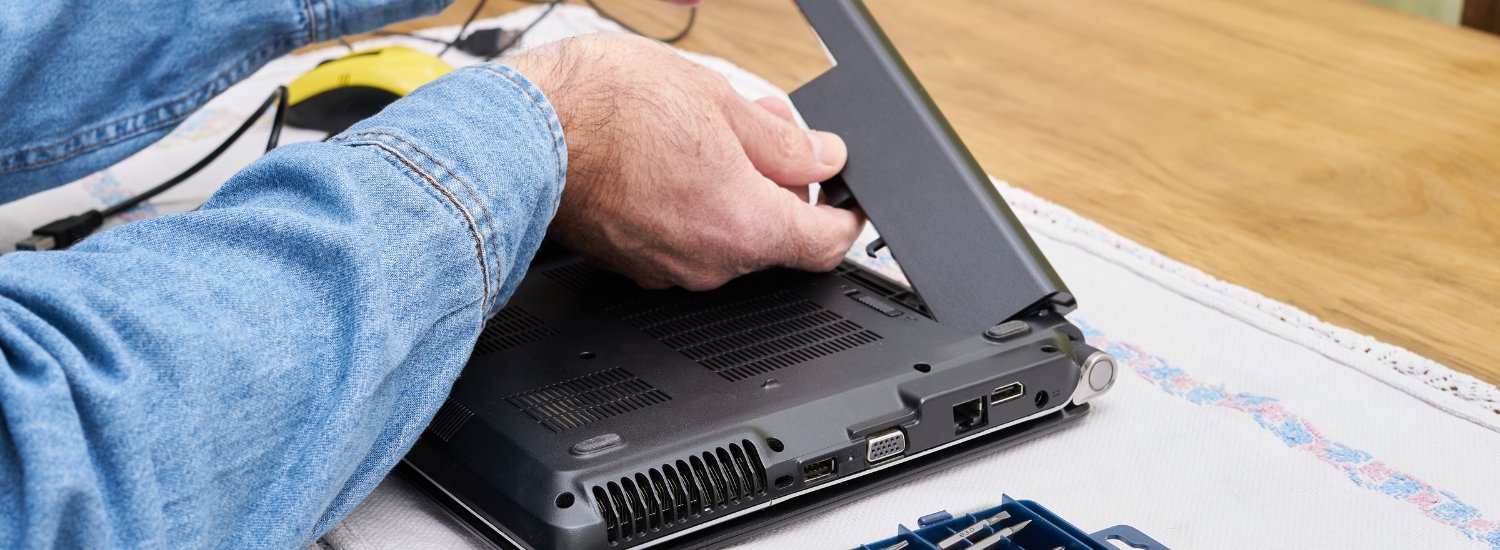
If you’ve tried all the basic fixes and your PC is still running at a snail’s pace, it may be time to call in a professional. A certified PC technician can perform advanced diagnostics to uncover deeper issues that aren’t always visible to the average user. From detecting hidden malware and registry errors to optimizing your system settings, tech experts can restore your computer’s performance more effectively and safely.
In many cases, they can also handle more complex hardware upgrades, such as installing additional RAM or swapping out an old hard drive for a faster solid-state drive (SSD). Other specialized services may include updating the BIOS, replacing thermal paste or cooling fans to resolve overheating issues, or performing a full system reset while preserving your important files through proper data backup procedures. When DIY fixes don’t cut it, professional service can save you time, stress, and potentially the cost of a premature replacement.
7. Final Thoughts
A slow PC doesn’t mean it’s time to toss your computer. In most cases, sluggish performance stems from a few common issues that are easy to fix with the right knowledge or expert support. From managing startup programs to upgrading hardware like RAM and SSDs, there are plenty of options to restore your machine’s speed and performance.
In the event of any inquiry, BD IT Solutions & Services, serving Dhaka, Chattogram, Khulna, Sylhet, Rajshahi etc. can be ultimate contact for 24/7 dedicated and dependable services.


0 Comments