
Your computer is slowing down, refusing to install updates, or constantly reminding you that disk space is low—sound familiar? Whether you’re using a traditional HDD or a modern SSD, storage problems are among the most common issues affecting laptops and desktops. As applications grow in size and your files accumulate, your device’s performance can take a serious hit. From inefficient file management to outdated hardware, these issues can prevent you from working, saving important data, or even booting your system. In this blog, we’ll break down the most common storage-related problems and what you can do to fix them—whether it’s cleaning up digital clutter or upgrading your drive.
Table of Contents
- Why Is My Hard Drive Always Full?
- Do I Need More Storage Space or a New Drive?
- How File Organization Impacts Your PC
- Best Fixes for Storage Issues
- Quick Signs You’re Facing Storage Problems
- When to Visit a Computer Repair Expert
- Final Thoughts
1. Why Is My Hard Drive Always Full?
A full or nearly full hard drive can dramatically slow down your system, cause programs to crash, or even prevent startup. This often happens when temporary files, duplicate downloads, media libraries, and outdated backups eat up space in the background. Even if you think you don’t save much, browsers, system updates, and installed apps can quietly fill up storage over time. You might try deleting a few files here and there, but if you’re constantly getting “Low Disk Space” warnings, it’s time to take a deeper look.
2. Do I Need More Storage Space or a New Drive?
If you’ve already cleared unnecessary files and the problem persists, your storage capacity may simply be too small for your needs. Most older PCs come with HDDs ranging from 256GB to 500GB, which may no longer be sufficient. Upgrading to a larger HDD or a faster SSD can dramatically improve not just space, but speed and reliability. SSDs, in particular, offer faster boot times, quicker file access, and are less prone to mechanical failure. Depending on your workload, moving to a 1TB or even 2TB SSD might be a smart long-term investment.
3. How File Organization Impacts Your PC
Poor file management can create digital chaos and make it harder to locate important documents when you need them. Over time, duplicate files, unused downloads, and scattered folders clutter your drive. This doesn’t just affect storage—it slows down indexing and search functions, increasing load times. Organizing files into labeled folders, deleting duplicates, and using cloud storage for backups can help reclaim space and improve performance. Tools like Disk Cleanup (Windows) or Finder Storage Management (Mac) can assist in sorting things efficiently.
4. Best Fixes for Storage Issues
Here are some solutions to consider when dealing with low storage space:
-
Run disk cleanup tools to remove temp and junk files
-
Move large files (like videos and photos) to external drives
-
Use cloud storage (e.g., Google Drive, Dropbox) to free up local space
-
Upgrade your internal drive to a larger SSD or HDD
If your system still struggles after cleanup, a storage upgrade is usually the most effective long-term fix.
5. Quick Signs You’re Facing Storage Problems
Not sure if your PC’s issues are storage-related? Here are some common warning signs to watch out for:
-
Frequent “Low Disk Space” notifications
-
Slow file opening, saving, or copying
-
Inability to install software updates or new programs
-
System fails to boot or crashes during startup
-
Performance drops when multiple apps are open
-
Constant need to delete files to make room
If you’re noticing one or more of these issues regularly, chances are your storage is either full or failing—both of which require attention.
6. When to Visit a Computer Repair Expert
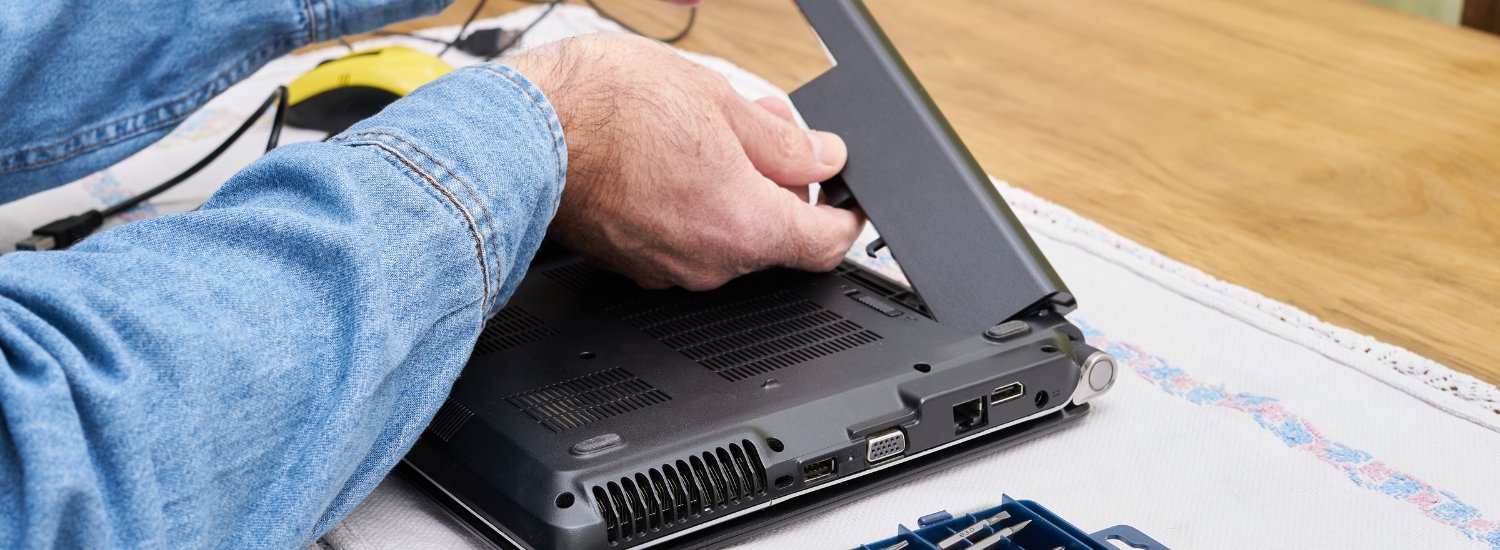
If you’re unsure which storage upgrade is compatible with your PC, or you’ve tried cleanup with no success, it’s time to consult a technician. A professional can assess your storage usage, recommend the right drive, and perform the upgrade without risking your data. They can also clone your old drive to a new one, so you don’t lose files, apps, or settings. Whether it’s adding a secondary storage drive or replacing a slow HDD with a lightning-fast SSD, expert installation ensures everything runs smoothly.
7. Final Thoughts
Storage problems are more than just an inconvenience—they can seriously disrupt your work, slow down your system, and even risk your data. From full hard drives to disorganized files and outdated components, identifying the root cause is the first step. With the right mix of cleanup and upgrades, you can reclaim your space, boost performance, and get your computer running like new. Don’t wait for a total shutdown—take action before small issues turn into big problems.
In the event of any inquiry, BDIT Solutions & Services, serving Dhaka, Chattogram, Khulna, Sylhet, Rajshahi etc. can be ultimate contact for 24/7 dedicated and dependable services.

0 Comments